How to Use Trading Charts on MT5
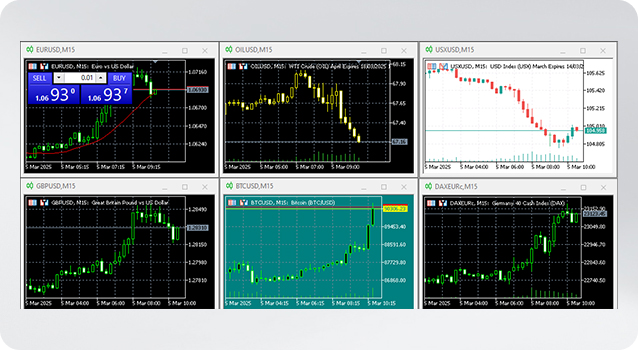
MetaTrader 5 (MT5) is a powerful, multi-asset trading platform designed for modern traders. It builds on the simplicity of MT4 while offering enhanced charting, faster performance, and more advanced analytical tools. Whether you’re new to trading or looking to get more from your technical analysis, this guide will help you navigate and customise MT5 trading charts with confidence.
Getting to Know the MT5 Interface
Toolbars
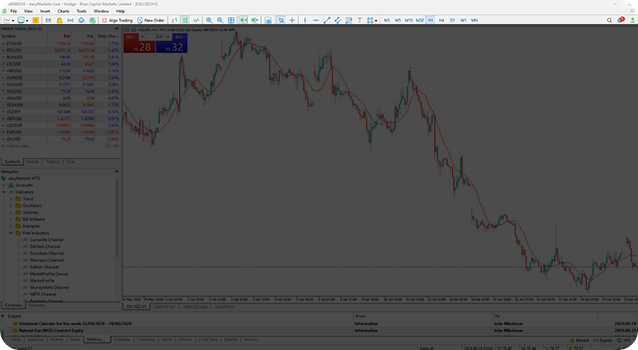
At the top of the MT5 platform, toolbars provide quick access to essential features through shortcut icons. These include chart types, timeframes, indicators, drawing tools, and order execution options.
Charts
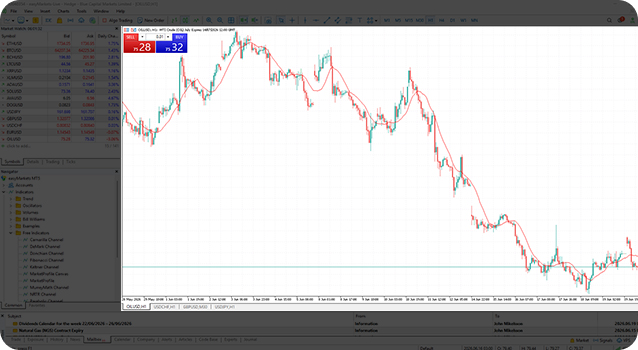
The central area of the platform displays your active charts. This is where you analyse price action, apply indicators, and identify trading opportunities across different markets and timeframes.
Market Watch
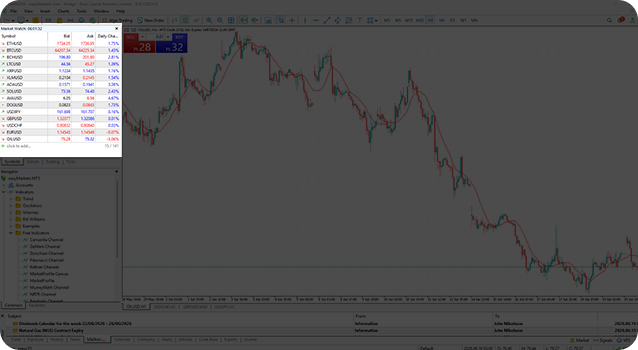
Located in the upper-left corner, the Market Watch window shows all available trading instruments along with real-time bid and ask prices. MT5 supports a wide range of asset classes, including forex, indices, commodities, shares, and cryptocurrencies.
Navigator
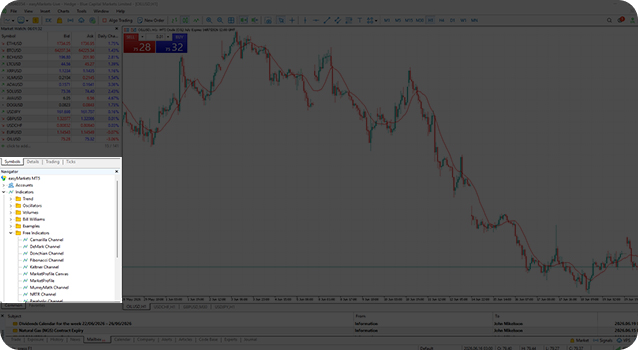
Found below Market Watch, the Navigator window helps you manage:

Trading accounts
Indicators
Expert Advisors (EAs)
Scripts
Toolbox
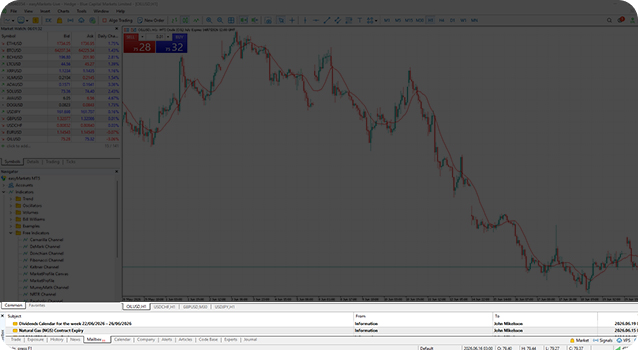
At the bottom of the platform is the Toolbox window. It contains tabs for:
Trade (open and pending positions)
History (closed trades and account activity)
Alerts
News
Mailbox
Calendar
Journal
How to customise Market Watch
To view all available instruments in Market Watch:
Right-click inside the Market Watch window
Select ‘Show All’
You can also switch to the Ticks view at the bottom of the panel to see real-time price movement for a selected instrument. Symbols can be hidden, rearranged, or grouped to suit your trading preferences.
How to open a chart
There are several ways to open a new chart in MT5:
Click the New Chart icon in the toolbar
Go to File → New Chart
Right-click an instrument in Market Watch and select Chart Window
Each chart opens in its own tab, making it easy to switch between markets.
Changing chart appearance
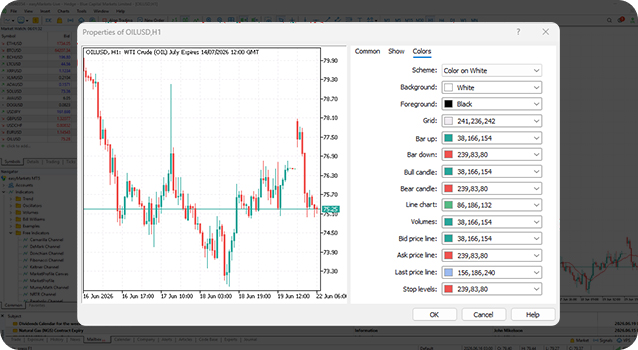
To customise your charts:
Right-click on the chart and select ‘Properties’
In the ‘Colours’ tab, adjust background, grid, and candle colours
In the Common tab, choose between bar, candlestick, or line charts
You can save your preferred layout as a template:
Right-click the chart
Select Template → Save Template
Charts can be zoomed in or out, and timeframes can be adjusted from 1 minute up to 1 month, allowing for both short-term and long-term analysis.
Adding indicators to your charts
Click the ‘Indicators’ icon in the toolbar to access MT5’s extensive indicator library. Indicators are organised by category, including:
Trend Indicators
Moving Average
Bollinger Bands
Ichimoku Kinko Hyo
Parabolic SAR
Average Directional Movement Index (ADX)
Envelopes
Standard Deviation
Oscillators
RSI (Relative Strength Index)
MACD
Stochastic Oscillator
And more
MT5 also allows you to run multiple indicators simultaneously and adjust their parameters for deeper analysis.
Trading Central Indicator
easyMarkets clients can access Trading Central* indicators directly within MT5 charts.
These professional-grade tools provide:
Actionable trade ideas and price levels
Multilingual support
Customisable strategies and timeframes
The ability to trade directly from the chart
*Trading Central is the proprietary product of TRADING Central™.
Working with multiple charts
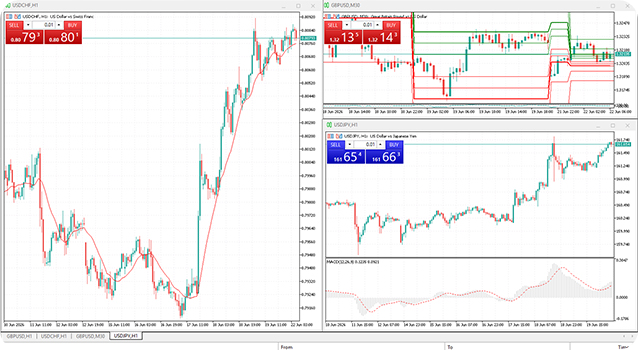
To open a new chart with the same layout as an existing one:
Drag a new instrument from Market Watch onto the chart area
The new chart will automatically load with the same template. Charts can be tiled, resized, or arranged freely, allowing you to monitor multiple markets at once.
Changing the platform language
To change the language in MT5:
Go to the View menu
Select Languages
Choose your preferred language and restart the platform
Customising the toolbar
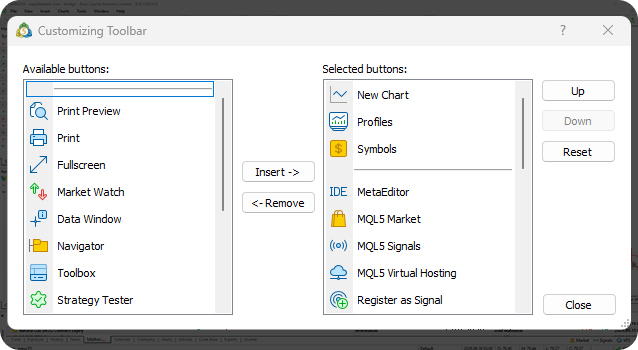
To streamline your workflow:
Right-click the toolbar and select Customize
Add or remove tools using the Insert and Remove buttons
Rearrange icons by dragging them into position
Customising the toolbar helps you access frequently used tools faster and trade more efficiently.
MetaTrader 5 (MT5) is the proprietary trading platform of MetaQuotes Software Corp. MT5 is a registered brand name of MetaQuotes Software Corp.